
diff options
| author | Xe Iaso <me@xeiaso.net> | 2023-10-28 13:56:52 -0400 |
|---|---|---|
| committer | Xe Iaso <me@xeiaso.net> | 2023-10-28 13:56:52 -0400 |
| commit | 4dbc0b4627449a7cad131cdb295ae100d3e7e805 (patch) | |
| tree | 5a3aa237172e34f9d1e9b2137c8c8d70a4d6d468 | |
| parent | a37eab38c3c61084218ab175cac57fc0af5e0954 (diff) | |
| download | xesite-4dbc0b4627449a7cad131cdb295ae100d3e7e805.tar.xz xesite-4dbc0b4627449a7cad131cdb295ae100d3e7e805.zip | |
fix templeOS article better
Signed-off-by: Xe Iaso <me@xeiaso.net>
| -rw-r--r-- | lume/src/blog/templeos-1-installation-and-basic-use-2019-05-20.md | 56 |
1 files changed, 28 insertions, 28 deletions
diff --git a/lume/src/blog/templeos-1-installation-and-basic-use-2019-05-20.md b/lume/src/blog/templeos-1-installation-and-basic-use-2019-05-20.md index e844443..b6565ce 100644 --- a/lume/src/blog/templeos-1-installation-and-basic-use-2019-05-20.md +++ b/lume/src/blog/templeos-1-installation-and-basic-use-2019-05-20.md @@ -12,7 +12,7 @@ However, in direct spite of this, I believe that TempleOS has immediately applic This is not intended to make fun of the mentally ill, disabled or otherwise incapacitated. This is not an endorsement of any of Davis' political views. This is intended to glorify and preserve his life's work that so few can currently really grasp the scope of. -If for some reason you are having issues downloading the TempleOS ISO, I have uploaded my copy of it [here](https://cdn.xeiaso.net/file/christine-static/blog/TOS_Distro.ISO). Here is its SHA512 sum: +If for some reason you are having issues downloading the TempleOS ISO, I have uploaded my copy of it [here](https://cdn.xeiaso.net/file/christine-static/TOS_Distro.ISO). Here is its SHA512 sum: ``` 7a382d802039c58fb14aab7940ee2e4efb57d132d0cff58878c38111d065a235562b27767de4382e222208285f3edab172f29dba76cb70c37f116d9521e54c45 TOS_Distro.ISO @@ -40,31 +40,31 @@ TempleOS works decently with [VirtualBox](https://www.virtualbox.org) and [VMWar TempleOS is a 64 bit OS, so pick the type `Other` and the version `Other/Unknown (64-bit)`. Name your VM whatever you want: - + Then press Continue. [TempleOS requires 512 MB of ram to boot](https://github.com/Xe/TempleOS/blob/master/ReadMe.TXT#L11), so let's be safe and give it 2 gigs: - + Then press Continue. It will ask if you want to create a new hard disk. You do, so click Create: - + We want a VirtualBox virtual hard drive, so click Continue: - + Performance of the virtual hard disk is irrelevant for our usecases, so a dynamically expanding virtual hard disk is okay here. If you feel better choosing a fixed size allocation, that's okay too. Click Continue: - + The ISO this OS comes from is 20 MB. So the default hard disk size of 2 GB is way more than enough. Click Continue: - + Now the VM "hardware" is set up. @@ -72,29 +72,29 @@ Now the VM "hardware" is set up. TempleOS actually includes an installer on the live CD. Power up your hardware and stick the CD into it, then click Start: - + Within a few seconds, the VM compiles the compiler, kernel and userland and then dumps you to this screen, which should look conceptually familiar: - + We would like to install on the hard drive, so press `y`: - +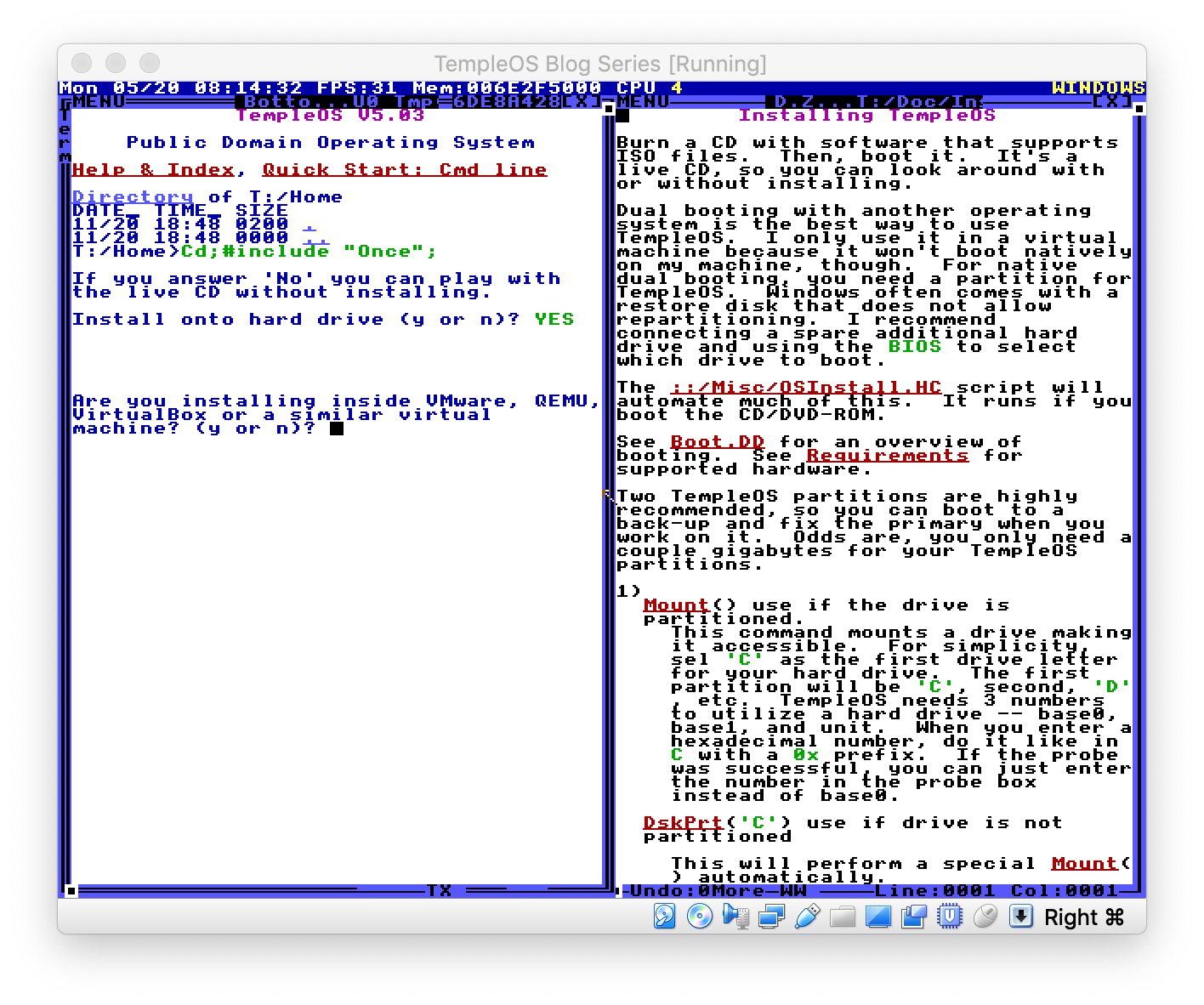 We're using VirtualBox, so press `y` again (if you aren't, be prepared to enter the IRQ's of your hard drive/s and CD drive/s): - +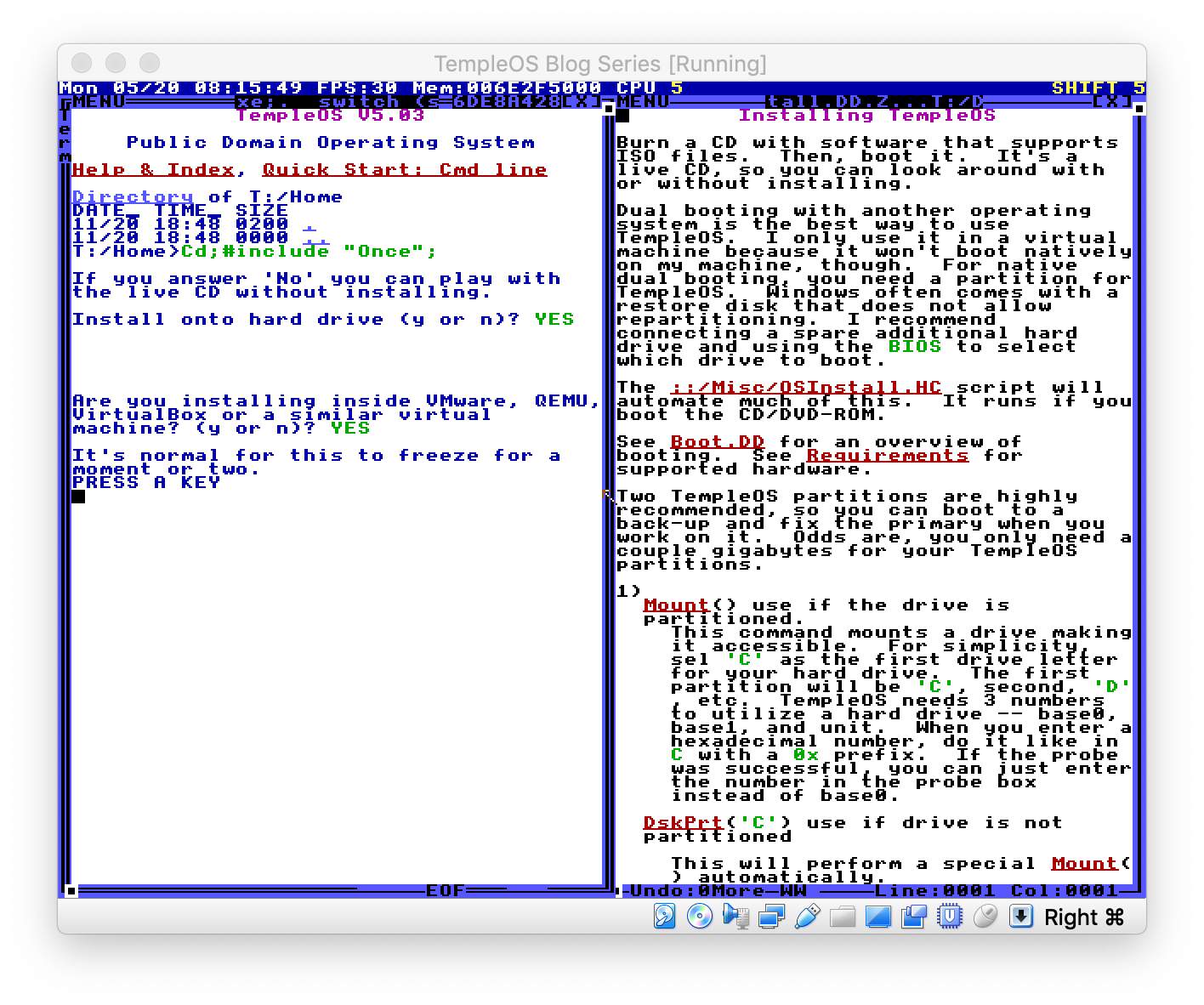 Press any key and wait for the freeze to happen. The installer will take over from here, copying the source code of the OS, Compiler and userland as well as compiling a bootstrap kernel: - +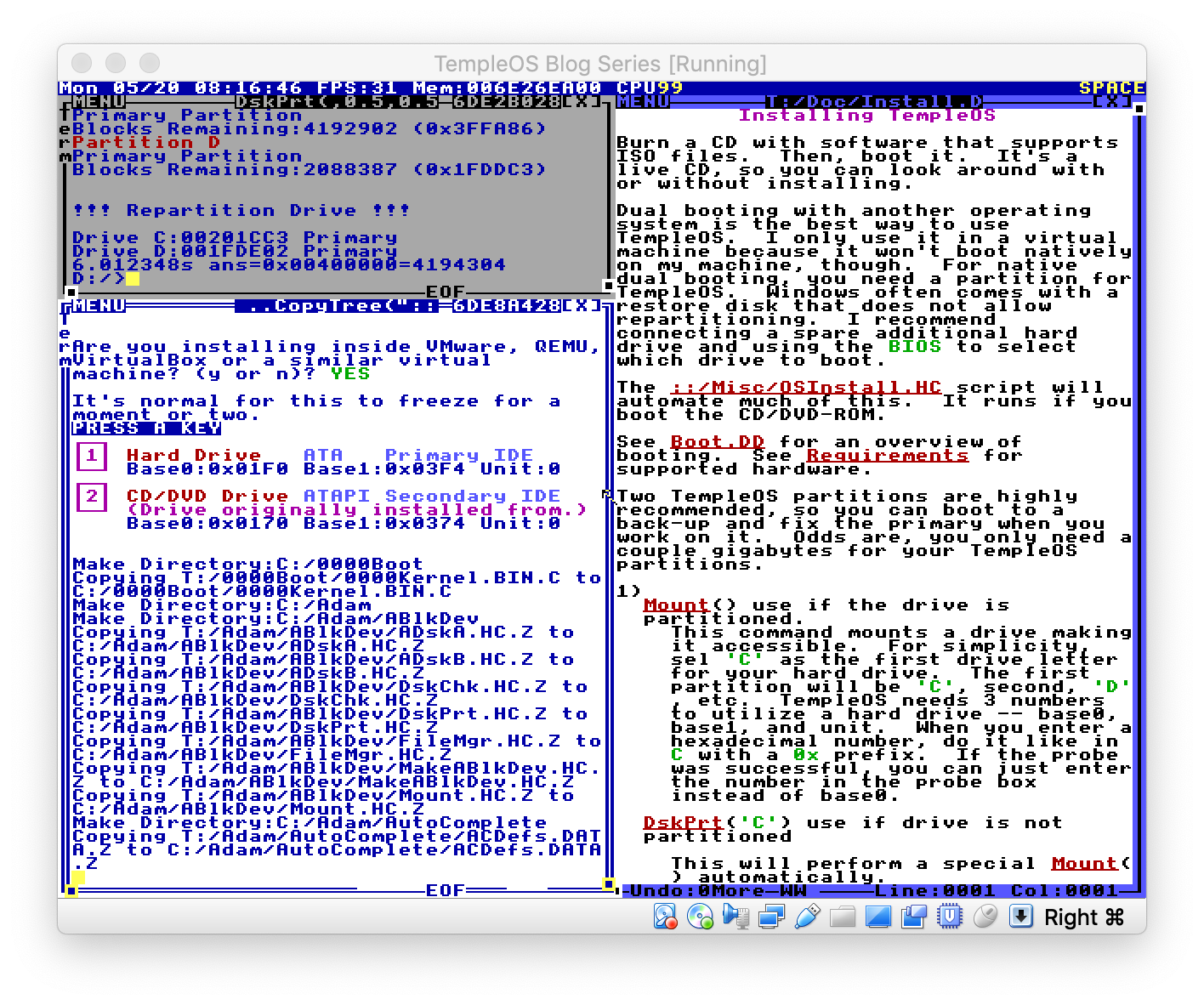 After a few seconds, it will ask you if you want to reboot. You do, so press `y` one final time: - +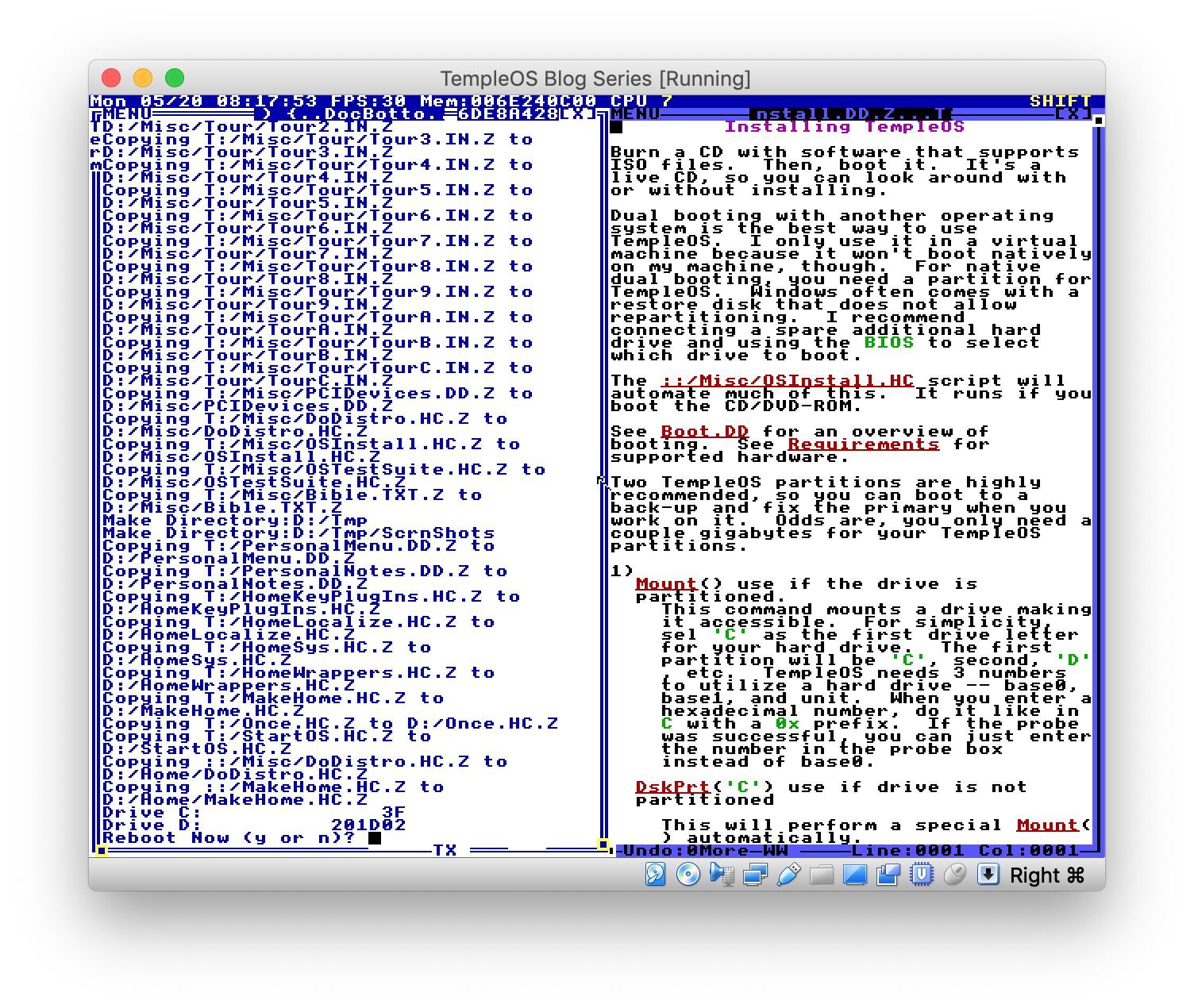 Make sure to remove the TempleOS live CD from your hardware or it will be booted instead of the new OS. @@ -102,23 +102,23 @@ Make sure to remove the TempleOS live CD from your hardware or it will be booted The [TempleOS Bootloader](https://github.com/Xe/TempleOS/blob/1dd8859b7803355f41d75222d01ed42d5dda057f/Adam/Opt/Boot/BootMHDIns.HC#L69) presents a helpful menu to let you choose if you want to boot from a copy of the old boot record (preserved at install time), drive C or drive D. Press 1: - + The first boot requires the dictionary to be uncompressed as well as other housekeeping chores, so let it do its thing: - + Once it is done, you will see if the option to take the tour. I highly suggest going through this tour, but that is beyond the scope of this article, so we'll assume you pressed `n`: - + ### Using the Compiler - + The "shell" is itself an interface to the HolyC (similar to C) compiler. There is no difference between a "shell" REPL and a HolyC repl. This is stupidly powerful: - +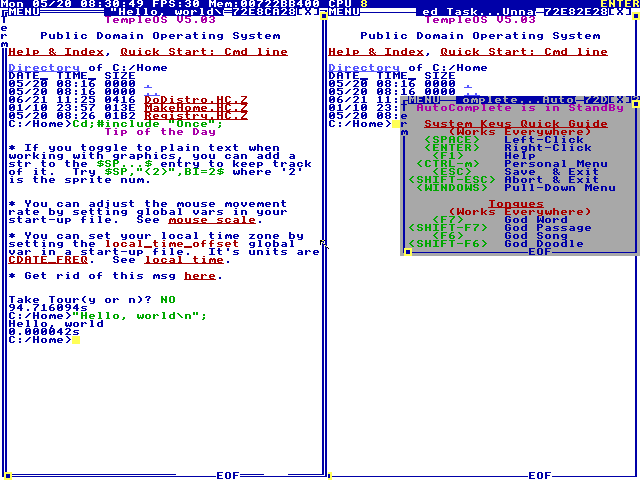 ``` "Hello, world\n"; @@ -128,25 +128,25 @@ Let's make this into a "program" and disassemble it. This is way easier than it Open a new file with `Ed("HelloWorld.HC");` (the semicolon is important): - +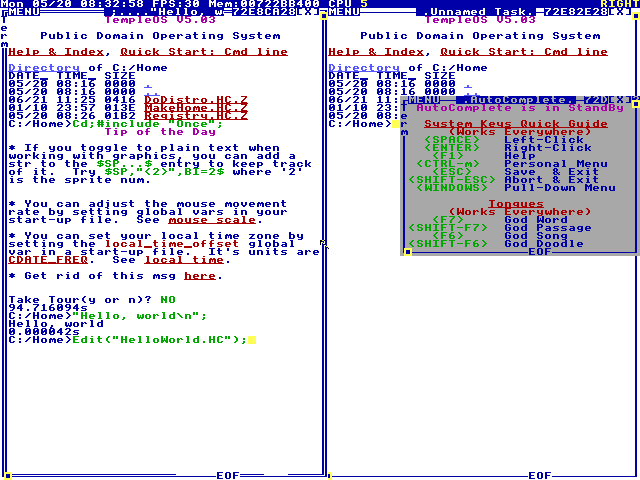 - +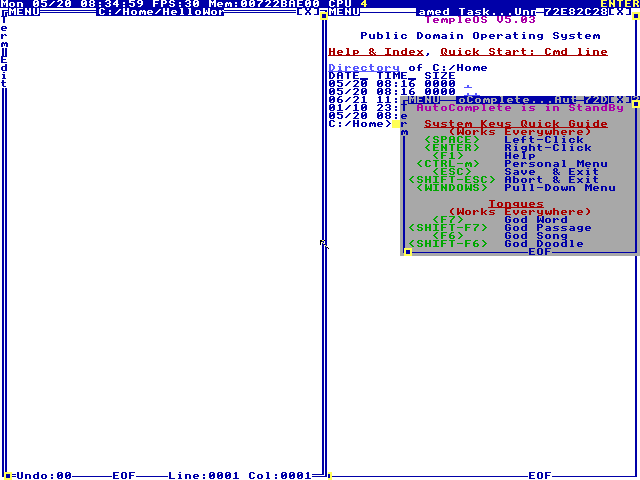 Now press Alt-Shift-a to kill autocomplete: - +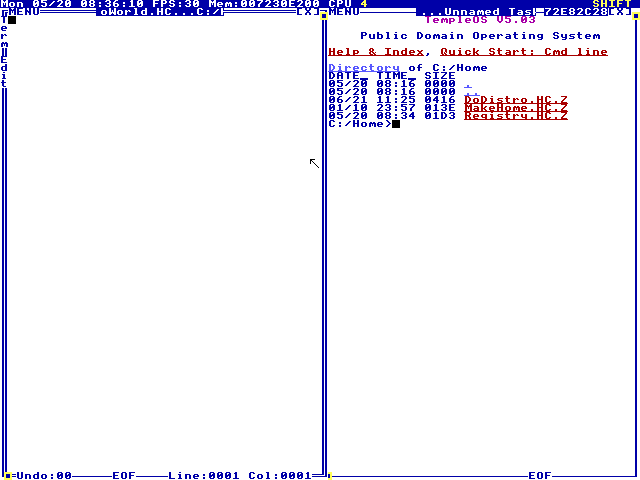 Click the `X` in the upper right-hand corner to close the other shell window: - +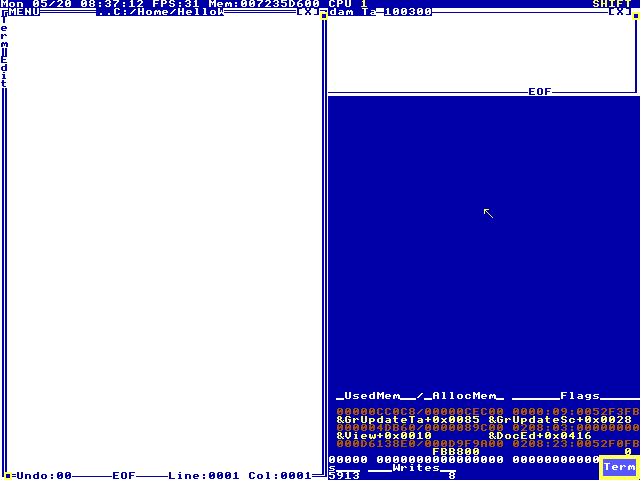 Finally press drag the right side of the window to maximize the editor pane: - +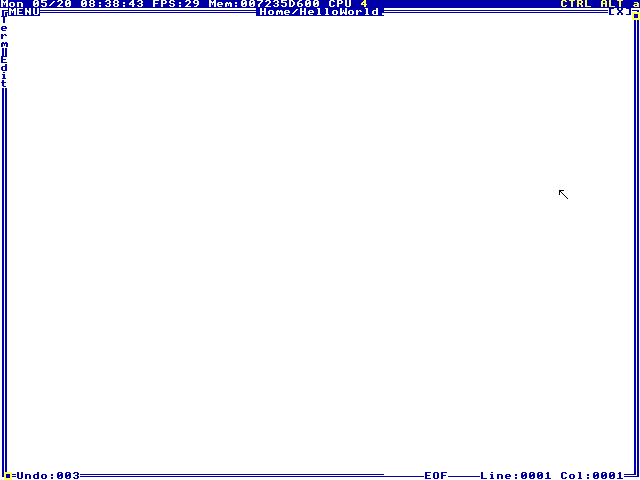 Let's put the hello word example into the program and press `F5` to run it: - +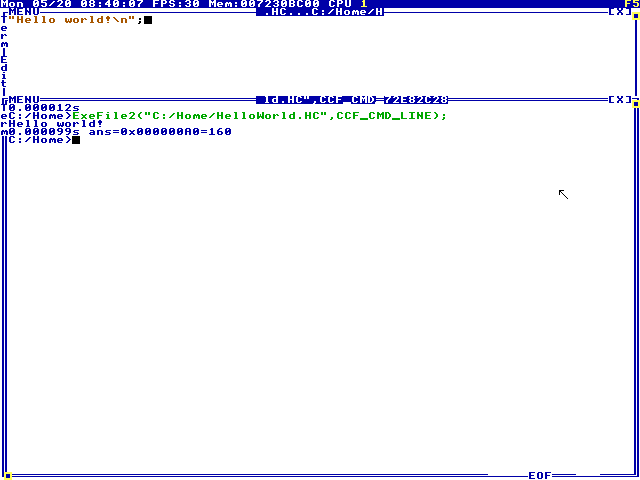 Neat! Close that shell window that just popped up. Let's put this hello world code into a function: @@ -160,7 +160,7 @@ HelloWorld; Now press `F5` again: - +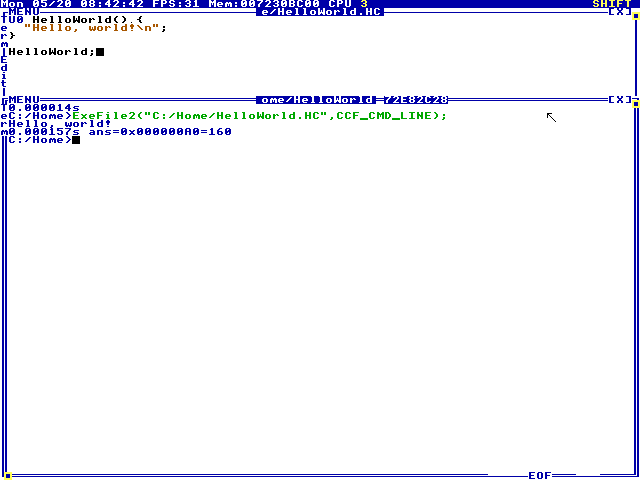 Let's disassemble it: @@ -172,7 +172,7 @@ U0 HelloWorld() { Uf("HelloWorld"); ``` - +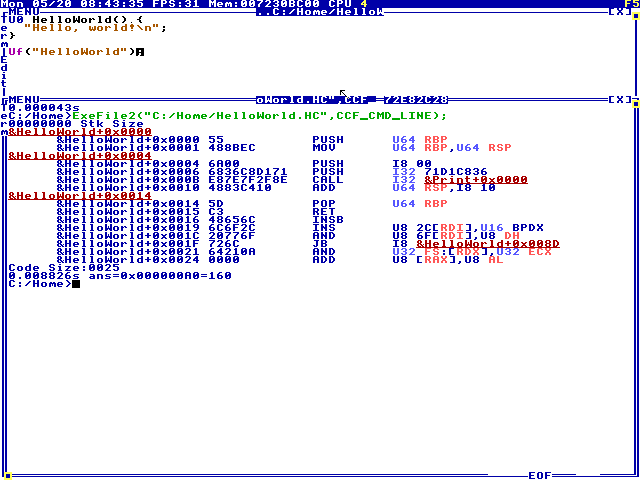 The `Uf` function also works with anything else, including things like the editor: @@ -180,11 +180,11 @@ The `Uf` function also works with anything else, including things like the edito Uf("Ed"); ``` - +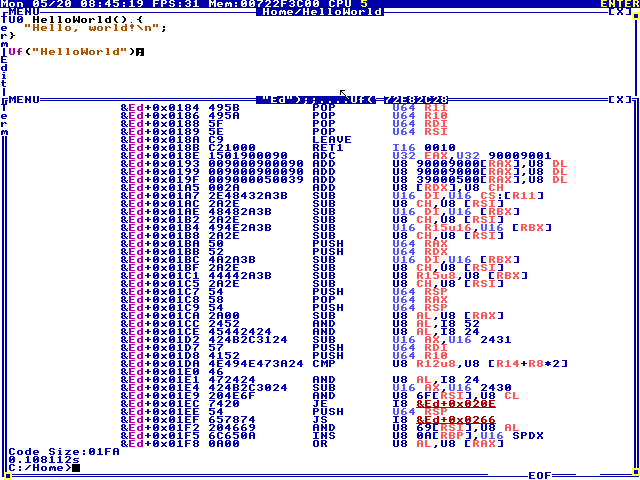 All of the red underscored things that look like links actually are links to the source code of functions. While the HolyC compiler builds things, it internally keeps a sourcemap (much like webapp sourcemaps or how gcc relates errors at runtime to lines of code for the developer) of all of the functions it compiles. Let's look at the definition of `Free()`: - +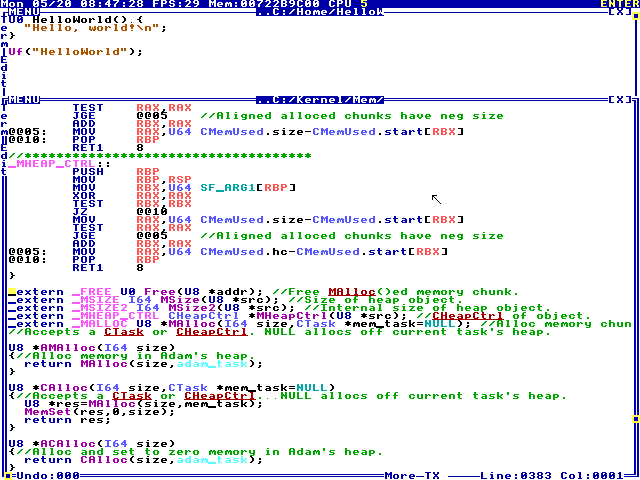 And from here you can dig deeper into the kernel source code. |